Accounts & signing in
Flightlog is a single-tenant app in spirit but supports multiple accounts — useful if you share an instance with a partner or family member who wants their own logbook.
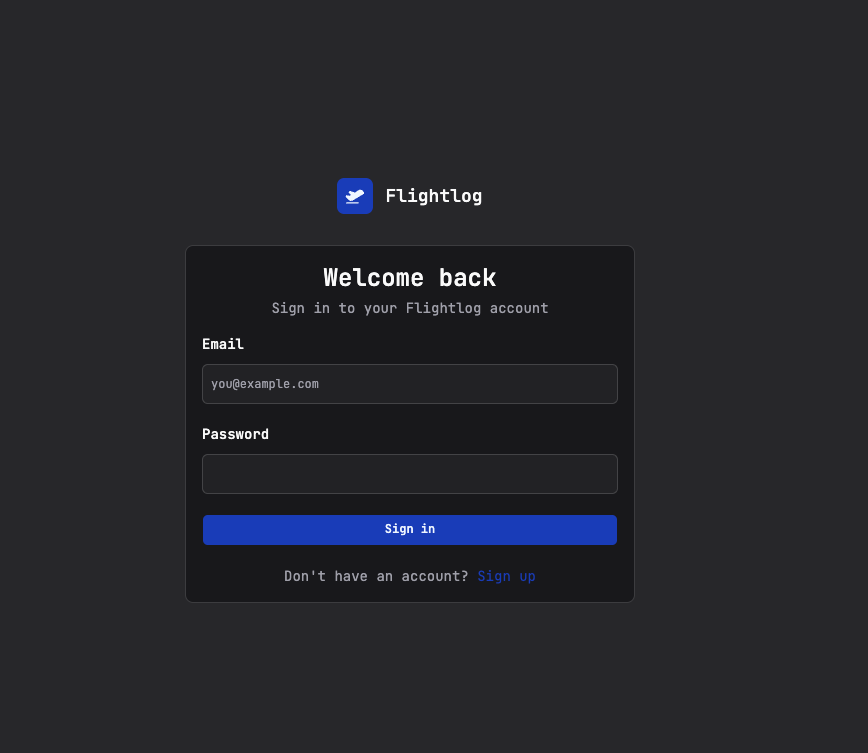
Creating your account
The first time you open Flightlog you'll land on the Sign in screen above. There's no separate admin step or invite flow — just:
- Click Sign up at the bottom of the card.
- Enter your email and a password.
- You're in. The next time you visit, sign in with the same credentials.
That's the entire account setup. Sessions are signed with the AUTH_JWT_SECRET you set during deployment, so they survive container restarts but will all log out if you rotate that secret.
Each account = its own logbook
Flights, dashboard totals, imports and exports are all scoped to the signed-in user. Two accounts on the same instance share:
- The AeroDataBox cache — if account A looks up
BA 117 on 2026-04-12and account B does the same search later, B gets the cached result and no extra API call is made. Helpful for shared households. - Nothing else. Account A can't see account B's flights, totals, or exports.
Forgetting a password
There's no self-serve password reset today — the simplest recovery is to drop into the SQLite database and reset the password hash manually, or just create a new account. If you're the only user on the instance and you're stuck, ping me on the GitHub issue tracker and I'll help you out.
Use a password manager
Since there's no reset email flow, treat your Flightlog credentials like any other self-hosted app — store the password in 1Password / Bitwarden / your manager of choice and you'll never have to think about it again.